Channels
7 minute read
A channel defines one or more method of delivering alert notifications to external systems.
Notification Delivery Channels
Email Channel
One or more email address (comma separated) that will receive messages from [email protected]
PagerDuty Channel
Trustgrid will generate an incident via the PagerDuty API if provided a valid API routing key. To procure a routing key, create a service in PagerDuty and add an Events API V2 integration. After adding the integration, the Integration Key is your API routing key.
Copy the routing key to the Trustgrid channel definition.
OpsGenie Channel
Trustgrid will generate an incident via the OpsGenie API if provided a valid API key with read and create and update permissions.
Slack Channel
Trustgrid can post the event data to a configured channel via an incoming webhook. First, create the webhook, and then copy the webhook URL into the Trustgrid channel definition.
Optionally, enable Format messages to send a readable Slack message instead of raw JSON.

Custom Slack message blocks
When Format messages is enabled, build the Slack message by adding and ordering the blocks you want. The block type controls how its content is laid out. You do not need to use every type, or keep the example fields and labels below. Choose fields that fit your alert, change their display labels, and remove or reorder them as needed. The editor preview uses sample values and does not send a message to Slack.
| Block | What you put in it | How Slack displays it | Use it for |
|---|---|---|---|
| Section | Selected alert fields with editable labels | A two-column field layout, with each label above its value. Each column can hold up to five fields. | The main facts you want people to scan or compare. |
| Context | Selected alert fields with editable labels | Compact, small grey metadata that wraps when it runs long. A block can contain up to ten fields. | Supporting details that should be visible but less prominent. |
| Message | Free-form text, with optional alert-field templates such as {{ alert.nodeName }} | A sentence or paragraph in the message’s normal text area. | A short explanation, instruction, or narrative that does not fit a label-and-value layout. |
The examples below illustrate possible configurations. Their fields, labels, and wording are not required defaults.
Section block
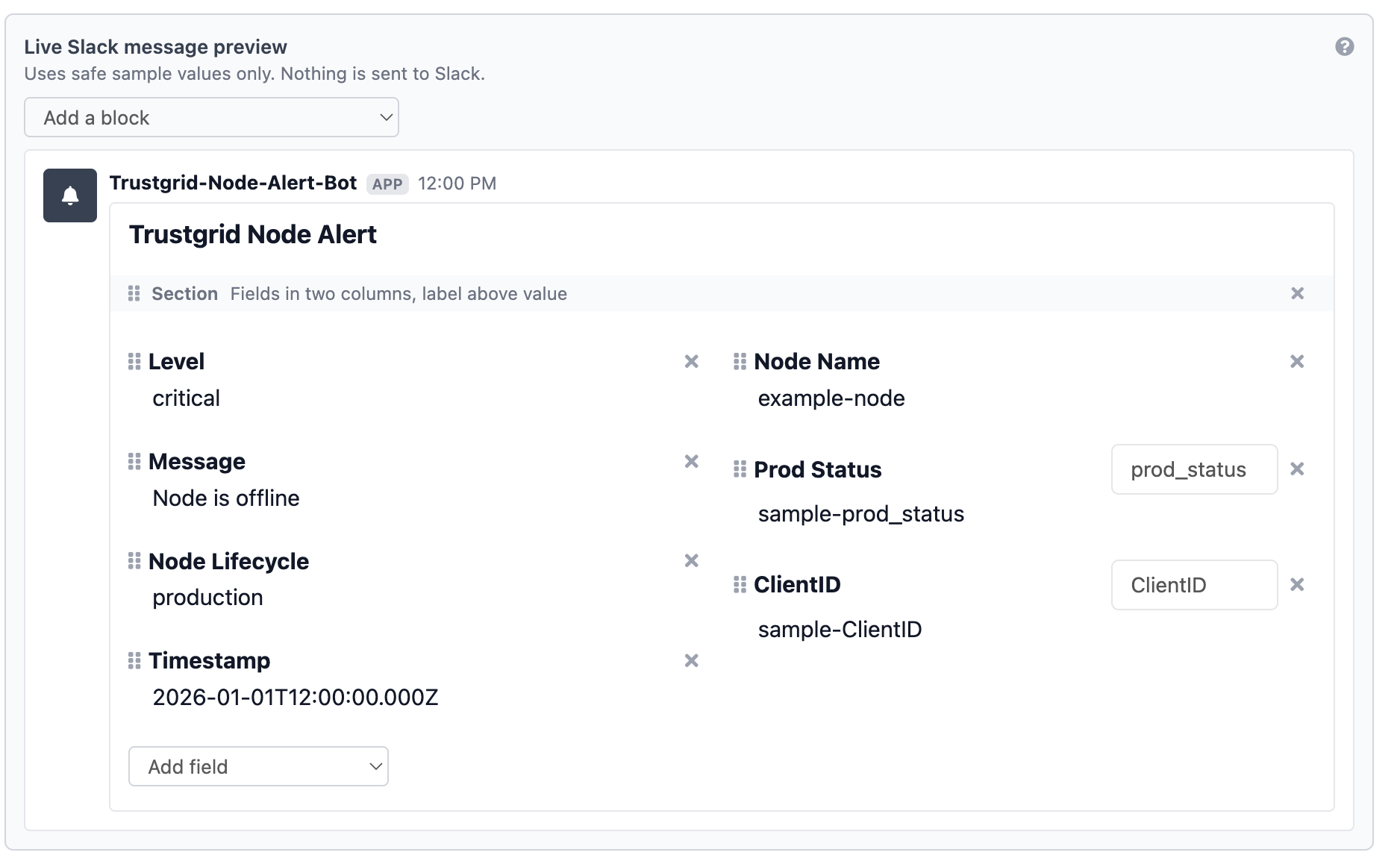
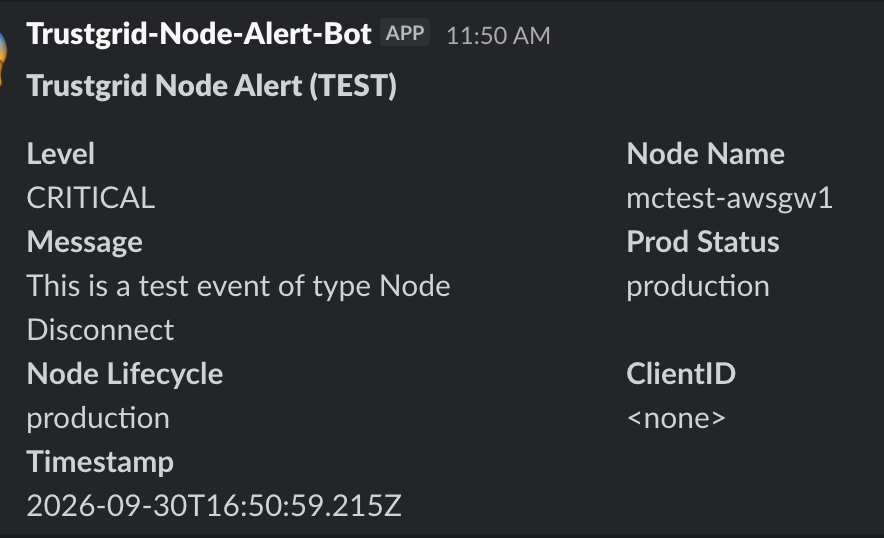
Use a Section block when you want to give important alert fields more visual weight. Fields appear in two columns, with each label above its value. In this example, Level and Node Name appear in the first row, with Message and other fields below. You can choose different fields or customize their labels.
Context block
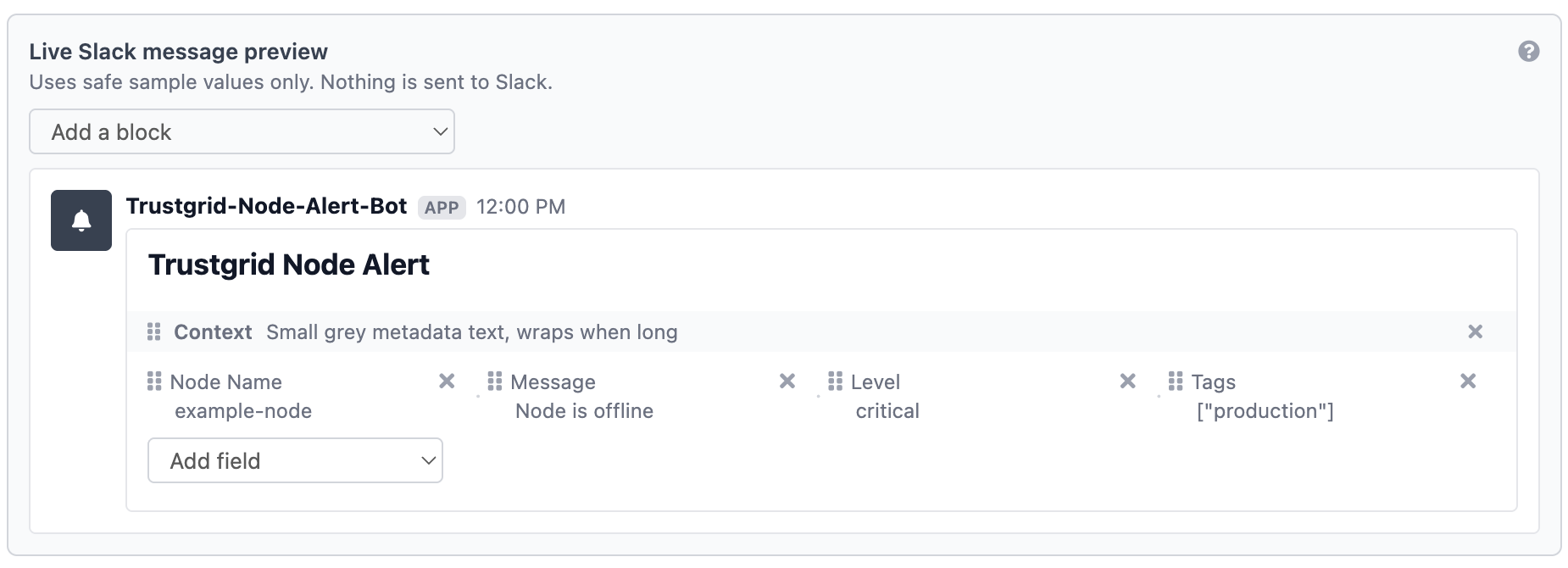
Use a Context block for secondary details. This example includes Node Name, Message, Level, and Tags. Slack displays them as compact, muted metadata that can wrap when it runs long. Choose the fields and labels that fit your alert.

Message block
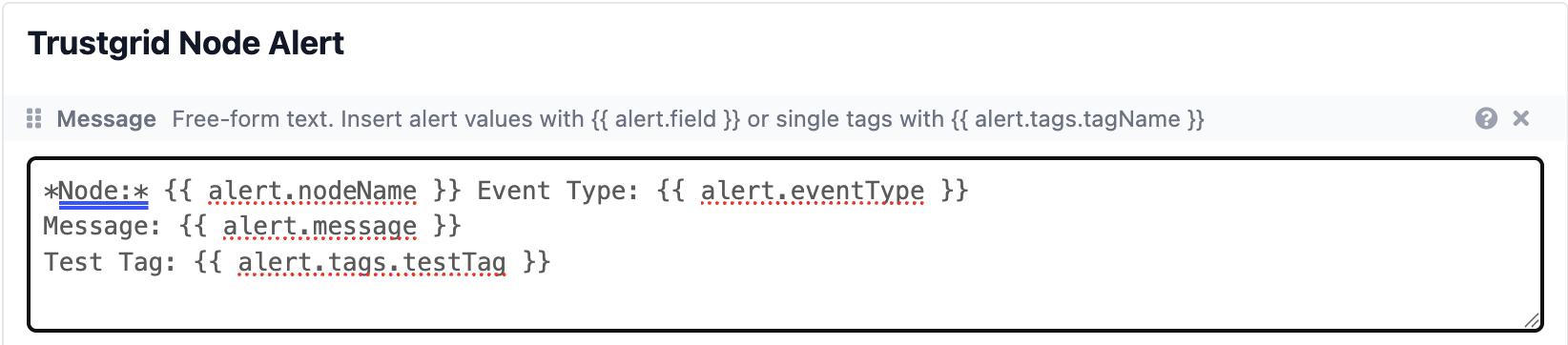
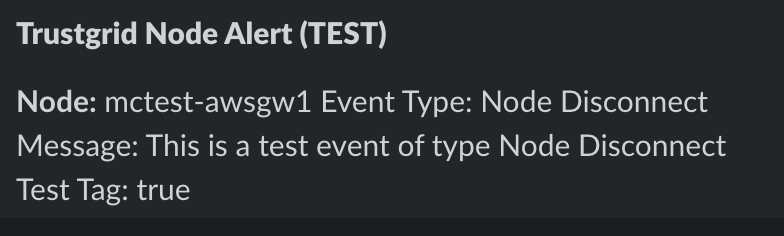
Use a Message block when you want to write the wording yourself instead of arranging fields into labeled columns. You can write plain text, insert alert-field values, or combine both. This example combines node and event fields with a tag value:
*Node:* {{ alert.nodeName }} Event Type: {{ alert.eventType }}
Message: {{ alert.message }}
Test Tag: {{ alert.tags.testTag }}
For the test event shown below, the message displays the node name, event type, test-event message, and testTag value.
Microsoft Teams Channel
Trustgrid can post event data to a configured Teams channel via an incoming webhook. First, create the webhook, and then copy the webhook URL into the Trustgrid channel definition.
Google Chat Channel
Trustgrid can post event data to a configured Google Chat (gChat) space via an incoming webhook. First create the webhook and then copy the webhook URL into the Trustgrid channel definition.
Generic Webhook
Trustgrid can send event data to any HTTP endpoint using a generic webhook channel. This allows for integration with a wide variety of systems and services. The Event Data payload below is sent in application/json format to the URL specified. Any authentication credentials should be specified in the URL.
Example Event Data
The event data is delivered in JSON. The example below shows an initial triggered event. Some fields use different names in the Slack Format messages selector, and some selector fields are not present in this event.
| Event JSON field or source | Slack field key → displayed label | Description |
|---|---|---|
nodeName | nodeName → Node Name | Name of the node associated with the event. |
level | level → Level | Event severity, such as WARNING. |
subject | — | Subject category associated with the event, such as Node. |
eventType | eventType → Event Type | Name of the event that triggered or updated the alert. |
source | — | Source identifier recorded with the event. |
message | message → Message | Human-readable alert message for the initial event. |
resolvedMessage (resolved output) | message → Message | Resolution-specific text. Formatted Slack output uses this through the message field when available. |
type | — | Record type. Alert identifies this record as an alert. |
orgId | orgId → Org ID | ID of the organization associated with the alert. |
GS1PK, GS1SK, PK, SK | — | Internal storage keys. Integrations generally do not need these fields. |
_ct, _md | — | Internal record metadata. These implementation details are not intended for channel processing. |
uid | — | Unique identifier for the alert record. |
domain | domain → Domain | Trustgrid domain associated with the node. |
receivedTime | receivedTime → Received Time | Unix epoch time when the event was received. |
state | — | One of four states:UNKNOWN — Initial event status.RESOLVED — Event has been resolved.EXCEEDED — The related metric exceeded its threshold.CLEARED — The related metric fell below its threshold. |
nodeId | nodeId → Node ID | Unique identifier of the node associated with the event. |
timestamp | timestamp → Timestamp | Unix epoch time when the event was first triggered. |
tags | tags → Tags | Map of tag names to values associated with the alert. |
channelID | channelId → Channel ID | ID of the channel used to deliver the notification. |
notes | — | Notes attached to the alert. |
alarmIDs | alarmIds → Alarm IDs | IDs of the alarm filters that matched the event. |
| Not in this example | lifecycleState → Node Lifecycle | Lifecycle state of the associated node, when available. |
| Not in this example | details → Details | Additional details associated with the alert. |
tags.<tagName> | tag:<tagName> → the selected tag name | Select an available tag name with the type-ahead field. The selected name becomes the field label. |
Field labels in Format messages can be customized. The labels in this table are the selector’s default display names, except for a single tag field, whose label updates to the selected tag name.
Example Event JSON
{
  "nodeName": "edge1",
  "level": "WARNING",
  "subject": "Node",
  "eventType": "Node Disconnect",
  "source": "EKG",
  "message": "Node disconnected",
  "type": "Alert",
  "orgId": "00000000-0000-4000-8000-000000000001",
  "GS1PK": "Org#00000000-0000-4000-8000-000000000001",
  "_ct": "2026-09-28T18:57:32.954Z",
  "uid": "01J9Z1K5Q2N8M0B7V4C3D6E1FA",
  "GS1SK": "Alert#01J9Z1K5Q2N8M0B7V4C3D6E1FA",
  "_md": "2026-09-28T18:57:32.954Z",
  "domain": "example.trustgrid.io",
  "receivedTime": 1790621836,
  "SK": "Alert#Node Disconnect",
  "PK": "Node#00000000-0000-4000-8000-000000000002",
  "state": "UNKNOWN",
  "nodeId": "00000000-0000-4000-8000-000000000002",
  "timestamp": 1790621836,
  "tags": {
    "ClientID": "Example Client",
    "manualupdate": "true",
    "prod_status": "production"
  },
  "channelID": "00000000-0000-4000-8000-000000000003",
  "notes": [
    "Example notes for this alert."
  ],
  "alarmIDs": [
    "00000000-0000-4000-8000-000000000004"
  ]
}
Testing Channels
Use Actions > Send Test Event to send a sample event through selected channels, independent of an alarm or event. This checks delivery and formatting.
- Navigate to Alarms > Channels and select the channel you wish to test.
- Select the channel(s) you wish to test.
- Click Actions > Send Test Event.
- In the popup dialog select the Node, Event Type, and Level you wish to send.
- Click Submit to send the test event.
To test a formatted Slack message, first save the channel, then click Send Slack test event in the Slack message editor. This sends the test to Slack only, using the channel’s current settings, including unsaved edits to the Slack format; those edits are not saved. The Slack message is marked (TEST). The channel-list Actions > Send Test Event option is a separate flow and sends through the selected channels’ configured integrations.
Feedback
Was this page helpful?
Glad to hear it! Please tell us how we can improve.
Sorry to hear that. Please tell us how we can improve.