Node and Cluster Commands
7 minute read
Commands define an executable and arguments to run on a Trustgrid appliance node. Use them for repeatable diagnostics, scheduled checks, or a long-running process. A cluster shares command definitions between its members; execution and output belong to the individual nodes.
Choose the Configuration Scope
| Scope | Where to configure | Where execution happens |
|---|---|---|
| Standalone appliance node | Open the node, then Compute → Commands. | On that node. |
| Cluster | Open the cluster, then Compute → Commands. | Each member receives the shared definition. Start an on-demand command from the chosen member’s node page. |
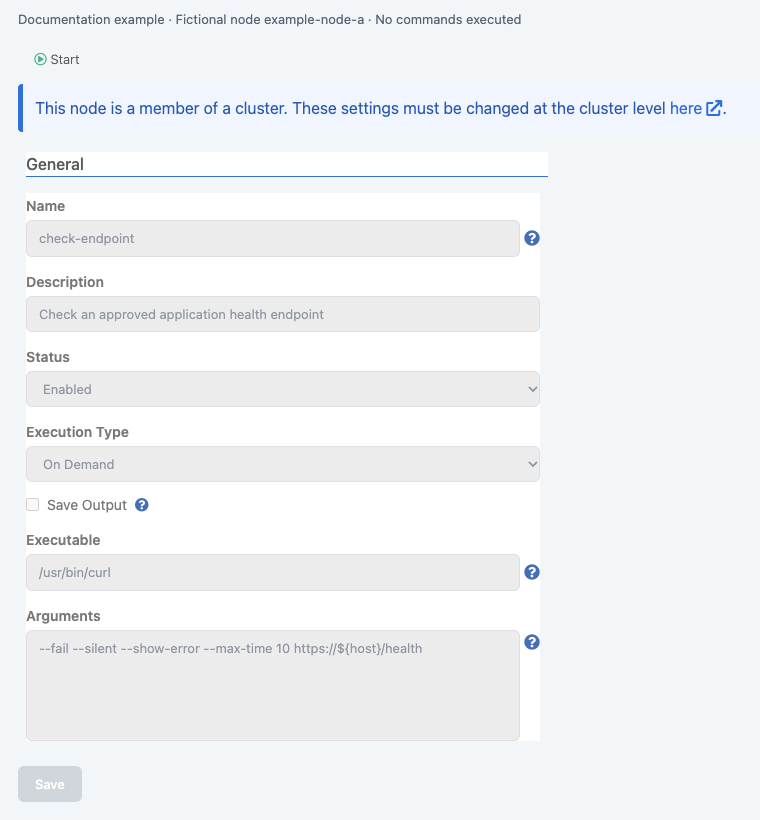
On a cluster member, the command’s Overview fields are read-only and link to the cluster configuration. Manage the name, executable, arguments, execution type, status, schedule, and output setting at the cluster level. The member’s Environment Variables and virtual network settings can provide node-specific values where those panels offer overrides.
Permissions and Preparation
In addition to access to the node or cluster, the relevant policies must grant:
| Operation | Permission |
|---|---|
| View command configuration | node-exec::read |
| Add, edit, import, enable, disable, or delete commands | node-exec::modify |
| Use command execution controls on a node | node-exec::compute |
| List and download saved output artifacts | nodes::get-exec-output |
Permissions must cover the target resource. Permission to edit a cluster definition does not by itself grant permission to execute it on a member.
Commands run programs on the node. Verify the executable path, arguments, network access, and resource requirements before enabling a command. Saving a definition does not install its executable or dependencies. Start with a disabled command while configuring it, especially for service or recurring execution.
Add and Configure a Command
- Open the standalone node or cluster, then select Compute → Commands.
- Click Add Command. On narrower displays, this is in the Actions menu.
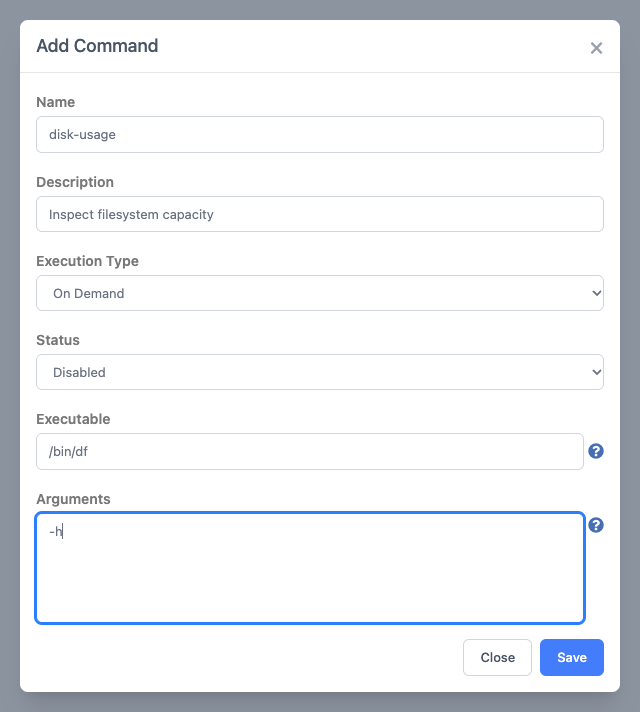
- Enter a unique Name, using letters, digits, and hyphens, and a Description that explains its purpose.
- Select the Execution Type and set Status to Disabled while preparing the command.
- Enter the Executable path and Arguments, then click Save.
- In Overview, configure any remaining settings. For Recurring, enter the Schedule here. Review Save Output before enabling it.
- Configure Environment Variables, Network, and Resource Limits as needed. Check member-specific values for a cluster command.
- Save the settings. When ready, change Status to Enabled and save, or select the command in the table and use Actions → Enable.
Execution Types
| Type | Behavior |
|---|---|
| On Demand | Runs when you click Start on a node’s command page. |
| Service | Starts automatically when its enabled configuration is applied or the node service starts. Use it for a process intended to remain running. Its node page provides Start, Stop, and Logs controls. |
| Recurring | Runs according to Schedule. Its command page does not provide a manual Start button. |
For recurring commands, a rate such as rate(30 minutes) or rate(1 hour) runs at the specified interval. Rate schedules start with an immediate execution when scheduled. A five-field cron expression such as 0 * * * * runs at the top of each hour according to the node’s scheduler clock. Verify the node’s time zone before relying on a wall-clock schedule.
Enabling a service or recurring command can start work without a separate Start action. For a cluster command, consider the effect on both members before enabling it.
Executable and Arguments
Use Executable for the program path, for example /bin/df, and Arguments for its parameters, for example -h. Separate arguments with spaces; double quotes keep an argument containing spaces together. The command launches an executable directly. Shell operators such as pipes and redirection require an explicitly chosen shell and appropriate arguments.
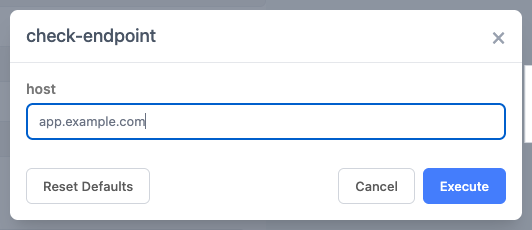
For an on-demand command, ${variable_name} in the executable or arguments creates a runtime input prompt. For example, https://${host}/health prompts for host. Review these inputs as carefully as the saved command, especially if using a shell. The Environment Variables panel configures the process environment; runtime inputs are supplied when starting an on-demand execution.
Run a Command on a Node
- Open the target appliance node, then Compute → Commands. For a cluster command, choose the member on which you want the run to occur.
- Click the command’s name. Check its execution type and enabled status.
- For an enabled On Demand command, click Start. If it has runtime variables, enter the values and click Execute, or Cancel to leave without running it. Without runtime variables, Start opens the execution session immediately.
- Review the output in the session window. A command can change the node as soon as it starts; there is no additional confirmation for an on-demand command without inputs.
For a Service, use the node’s Start, Stop, and Logs controls to manage that member’s process. Start and Stop submit their actions immediately. Use Actions → Disable on the definition when you want to disable it in configuration; a manual Stop is not a persistent configuration change.
The Commands table’s Status shows whether a definition is enabled, and Version identifies its configuration revision. Neither field proves that a run completed successfully. Review the execution output and the program’s own success or error messages.
Review Saved Output
Save Output stores standard output and standard error for later retrieval. Enable it before the run if you need retained output. Output can contain credentials, personal data, or application records, so check what the executable writes before saving or sharing it.
- Open the node that performed the execution.
- Select Compute → Output Artifacts.
- Locate the command’s output by name and Uploaded time, then click Download to retrieve the ZIP file. The shared output table labels its name column Container, including for command output.
For cluster commands, check each member separately. If no artifact appears, check that Save Output was enabled, that the execution produced output, and that the node has uploaded it. An enabled definition alone does not produce an output artifact.
Example Uses
These examples assume the named executable exists on the target appliance and the operator has reviewed its arguments. Hostnames ending in example.com are fictional; replace them with an approved endpoint before running a network check.
| Use case | Scope and type | Configuration and expected result |
|---|---|---|
| Inspect disk capacity | Standalone node, On Demand | Executable: /bin/df; Arguments: -h. Review filesystem capacity and available space in the execution window. |
| Compare cluster members | Cluster definition, On Demand | Define the same /bin/df command with -h, then start it separately on each member. Compare their output to find a member-specific storage problem. |
| Check an application endpoint | Node or cluster, On Demand | Executable: /usr/bin/curl; Arguments: --fail --silent --show-error --max-time 10 https://${host}/health. Supply an approved hostname at the prompt, such as app.example.com in a test environment. Review the response or error. |
| Repeat an approved endpoint check | Node, Recurring | Use the same curl options with a fixed, approved URL and Schedule: rate(30 minutes). Enable Save Output if the response is safe to retain. This runs immediately when scheduled and then every 30 minutes. On a cluster, plan for checks from both members. |
Disable or Remove a Definition
From Compute → Commands on the owning node or cluster, select the command and choose Actions → Disable or Delete, then review the confirmation. Disable retains the definition for later use. Delete removes it. These configuration changes can stop executions; review their effect before confirming, particularly on a shared cluster definition.
Use Actions → Import to reuse an existing command definition. Imported commands are disabled by default. Some network configuration is not imported; review the destination’s executable paths, variables, network settings, and resource limits before enabling the copy.
Feedback
Was this page helpful?
Glad to hear it! Please tell us how we can improve.
Sorry to hear that. Please tell us how we can improve.