Container Tools
3 minute read
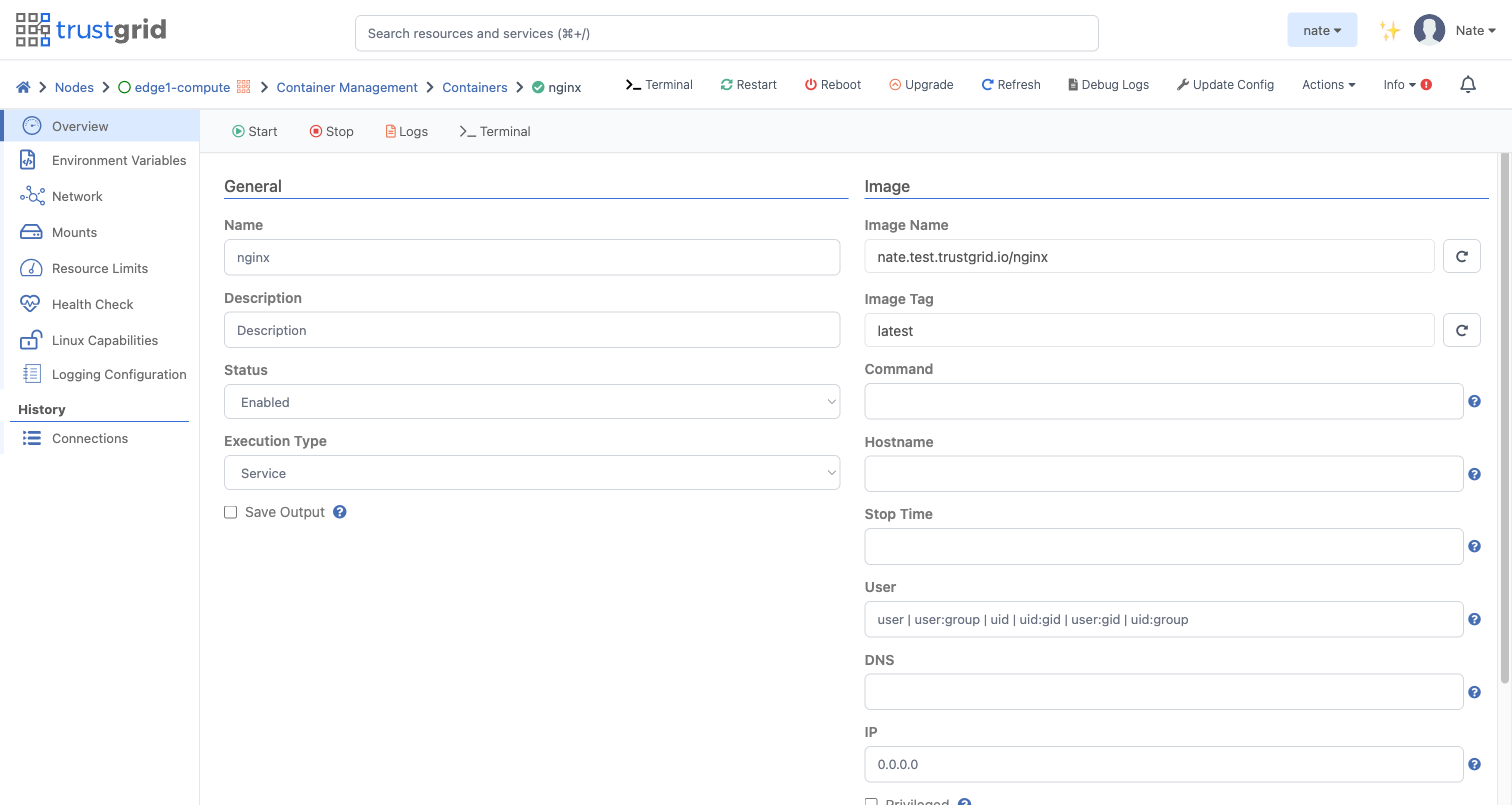
A container is configured at the cluster level (or at node level on a standalone appliance), but the tools are only available on the node level view. They act on the running container on that specific node: Start, Stop, view live logs, or open a shell.
Where to find them
Navigate to a node, then Compute → Container Management → Containers, and click the container’s name.
Status, State, and Health
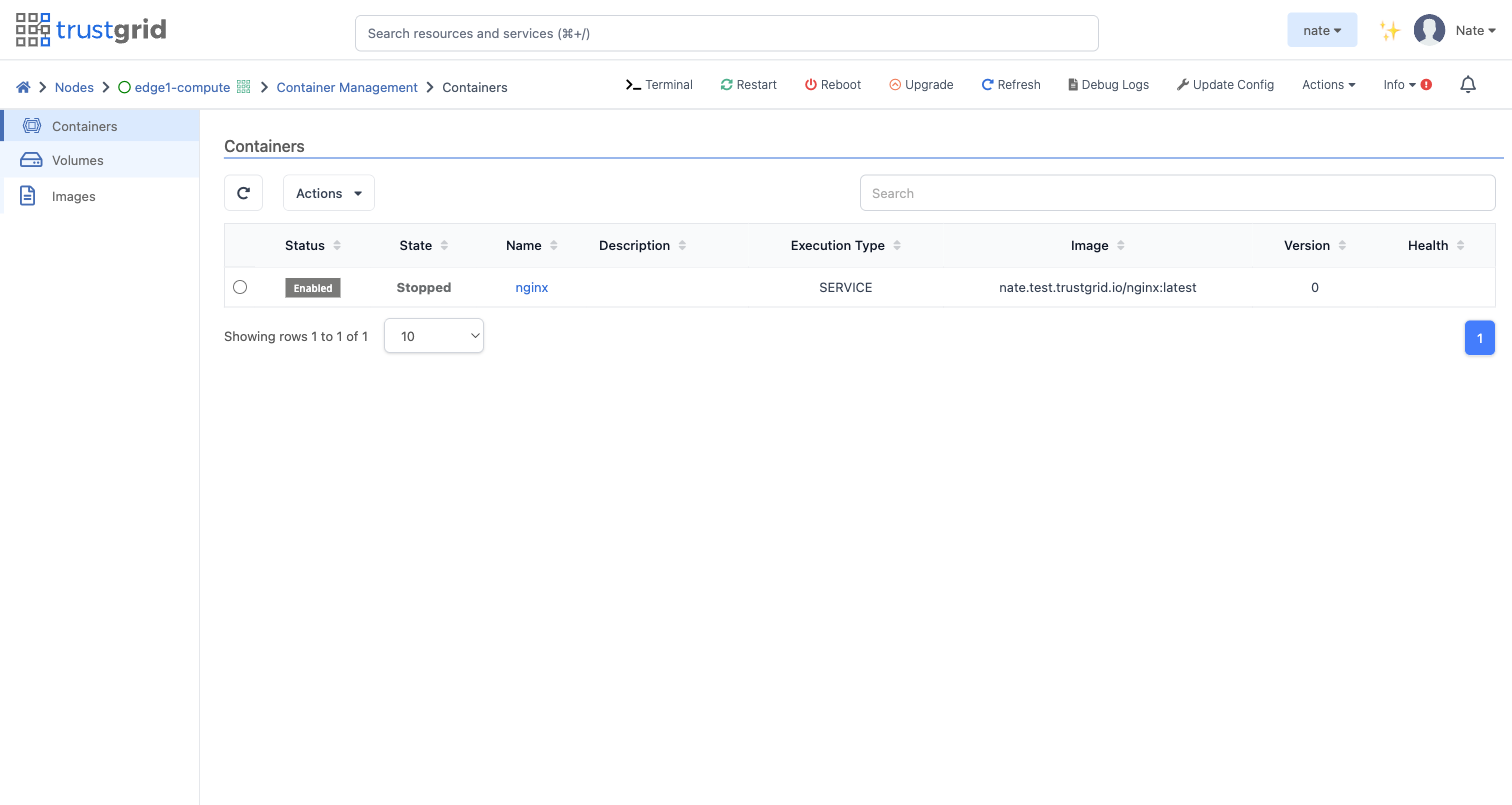
The container list at node scope shows three columns side by side:
- Status —
EnabledorDisabled. Whether the container is configured to run. - State — what’s actually happening right now:
Running,Initializing(image is downloading or the container is starting up), orStopped. - Health —
HealthyorUnhealthy, populated by the configured Health Check. Blank if no health check is set.
A container can show Enabled and Stopped at the same time - usually because the image couldn’t be pulled, because it hit a final failure, or because it was stopped manually.
Start
Starts the container immediately.
This is the only way to launch an On Demand container. For Service containers it’s useful when you’ve stopped one manually and want it back up without waiting.
Requires node-exec::compute permission.
Stop
Stops the container. For Service containers there’s a wait of up to Stop Time (default 30 seconds) for the container to shut down cleanly, then it’s forced.
Requires node-exec::compute permission.
Logs
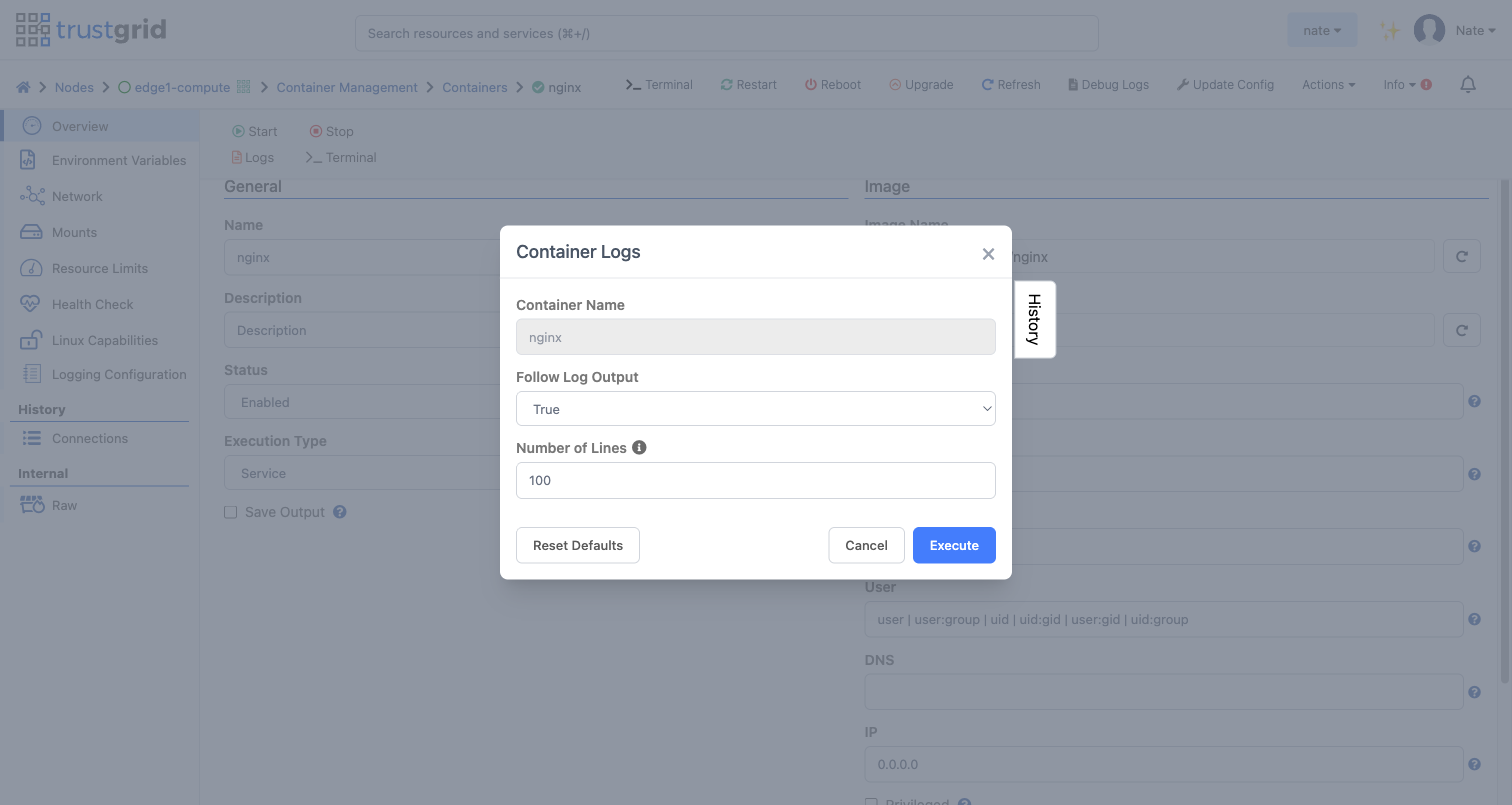
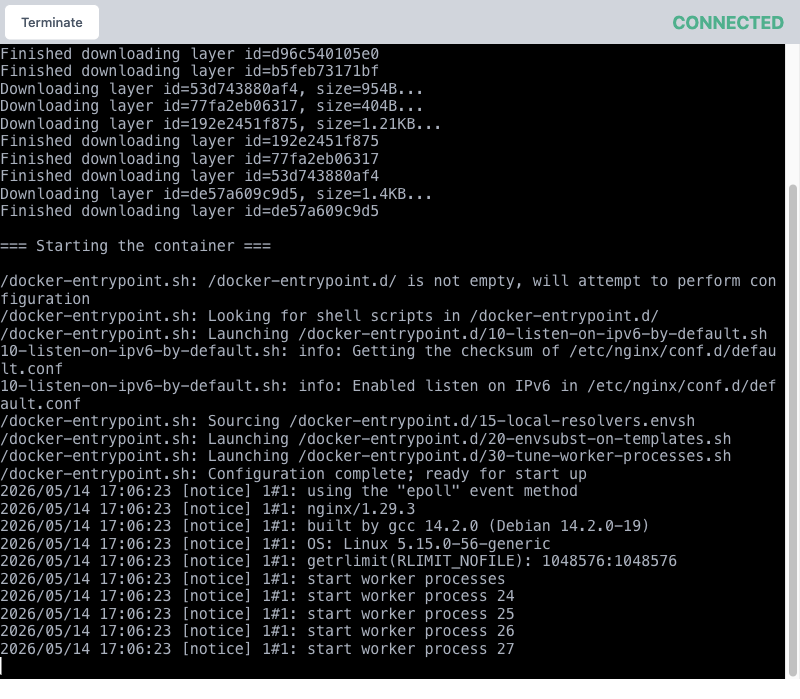
Opens a new browser tab that streams the container’s log output as it happens.
| Field Name | Description |
|---|---|
| Follow Log Output | When True, the viewer stays open and prints new lines as they appear. When False, the viewer prints recent lines and disconnects. |
| Number of Lines | How many recent lines to show before starting to follow. Default is 100. |
A CONNECTED badge in the corner means the stream is live. Click Terminate to close it.
Terminal
Opens a new browser tab with an interactive shell running inside the container — useful for debugging, poking around the filesystem, or running ad-hoc commands.
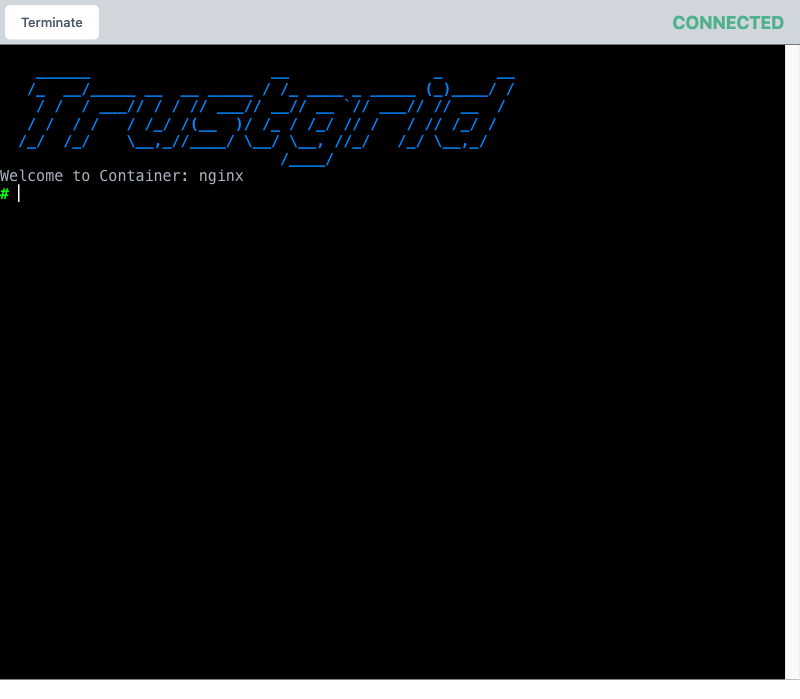
The shell runs as the configured user. If you didn’t set one, it runs as whatever user the image was built to run as. The Terminal button is disabled if the container isn’t currently Running.
/bin/sh or similar.Requires node-exec::compute permission.
History
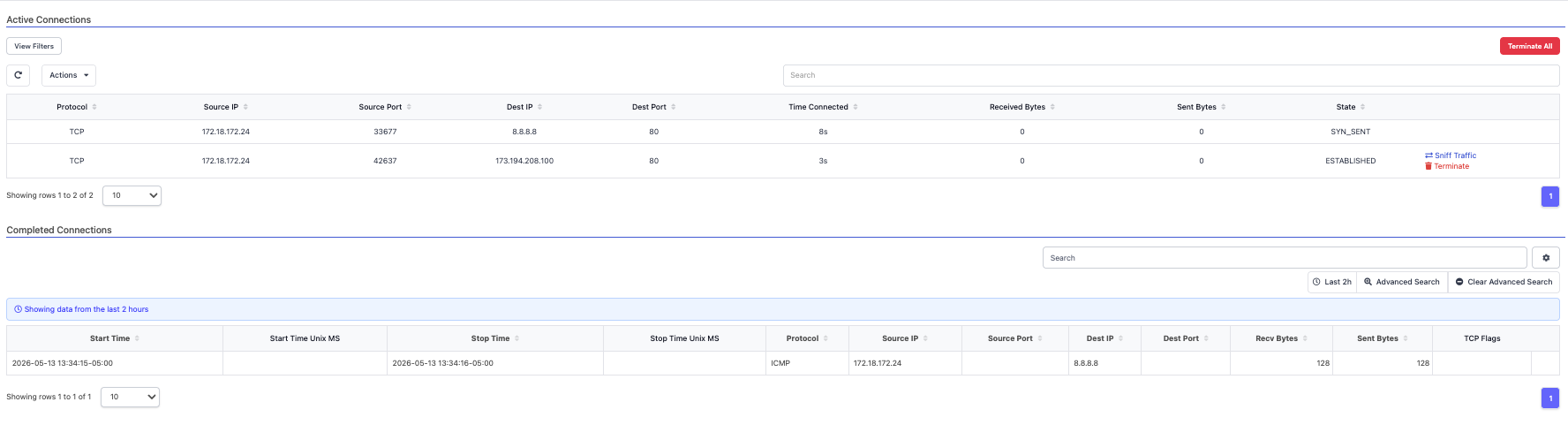
The History section in the left sidebar of a running container shows:
- Connections — Active Connections are live flows and can be terminated from that screen. Completed Connections are flow-log history for recently finished flows.
Related
- Container networking — how port mappings, virtual networks, and DNS resolution work.
Feedback
Was this page helpful?
Glad to hear it! Please tell us how we can improve.
Sorry to hear that. Please tell us how we can improve.