Configure HA L4 Cluster in AWS
4 minute read
In a high-availability (HA) cluster, the cluster IP gives you a stable address that survives member failover. L4 connectors and services can both leverage it, depending on which side of the traffic flow the cluster sits on. Use one or both — they are independent.
- Connectors give clients a stable destination IP:port to connect to.
- Services give backends a stable source IP for connections originated from the cluster.
Prerequisites
- A two-member Trustgrid HA cluster deployed in AWS.
- A cluster IP configured on the LAN interface. See Choose a failover mechanism below.
Choose a failover mechanism
Both modes use a cluster IP on the LAN interface for the stable address. What differs is where that IP lives and how it moves to the new active member on failover, based on whether your two members share an Availability Zone (AZ). The connector and service steps later in this guide are the same for both.
Same AZ
The cluster IP is an unused private IP inside the data-NIC subnet. On failover it is reassigned as a secondary private IP to the new active member. This is the simpler option, with nothing to manage in the route table, but both members must sit in the same AZ. Configure it per AWS Cluster IP Failover.
Different AZs
A secondary private IP cannot move across AZs, because it is bound to one subnet and a subnet lives in one AZ. To get a stable IP that survives the loss of an entire AZ, the cluster IP is a VIP outside every VPC CIDR, and failover is handled by the route table. This mode combines two things:
- A cluster IP set to the VIP on the LAN interface. Set it the same way as a normal cluster IP, but use an address outside every VPC CIDR. No IAM permissions are needed for the cluster IP itself: the active member only binds it locally on the interface, nothing is changed in AWS.
- AWS Cluster Route Failover, which keeps a
/32route to the VIP pointing at the active member and moves it on failover. Follow that page for the route-table setup and the IAM permissions, which are only needed for managing the route.
Set both, then return here to configure the L4 connector or service.
Connectors — Stable Destination IP for Clients
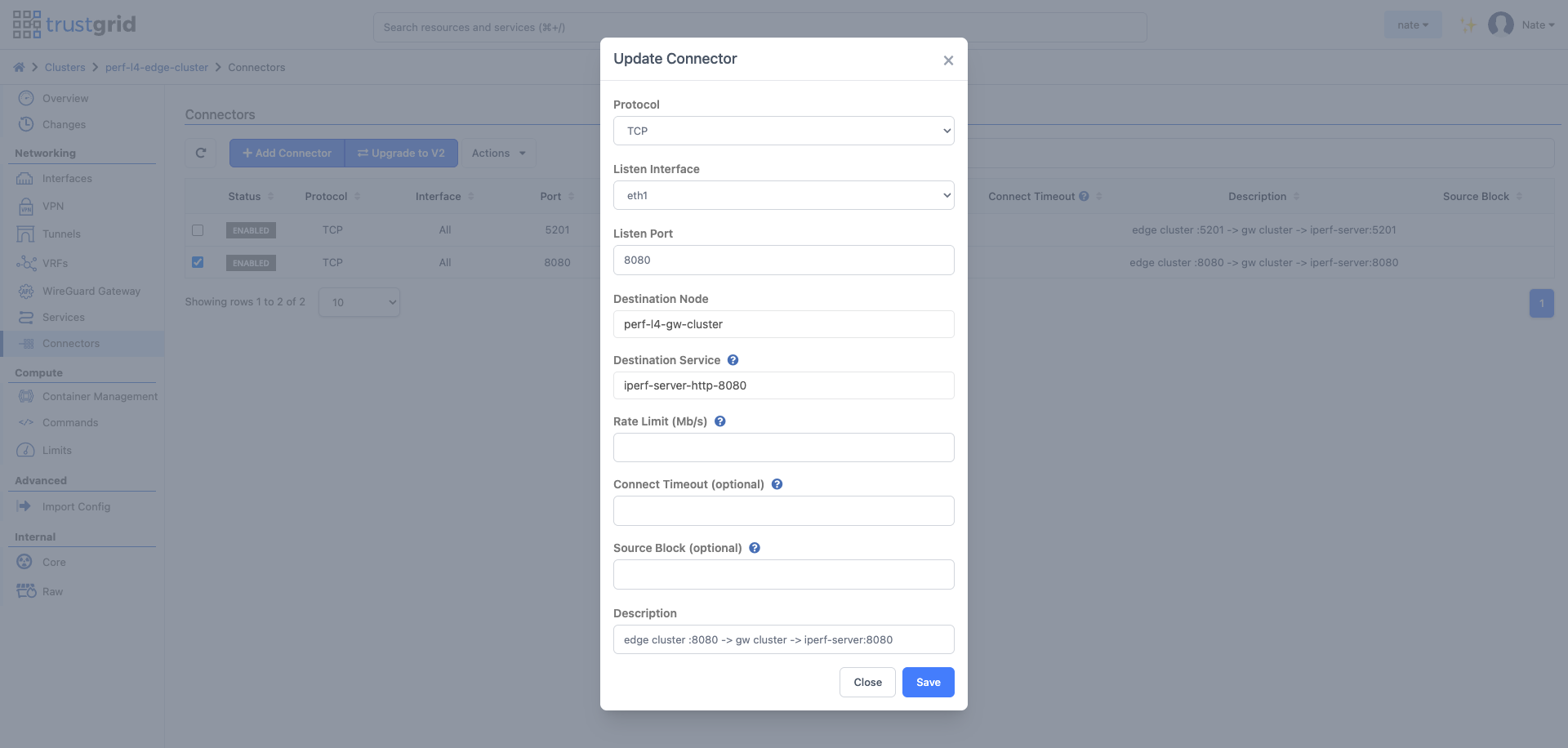
Use this pattern when clients should reach the cluster on a fixed IP:port. Set the connector’s Listen Interface to the LAN interface. When a cluster IP is configured on that interface, the connector binds only the cluster IP, not the member’s own LAN address. On failover the cluster IP moves to the new active member, which is listening on it, so clients reconnect to the same address.
- In the Trustgrid portal, navigate to your cluster and select Connectors from the Networking menu.
- Click Add Connector and configure:
- Listen Interface — set to the LAN interface where the cluster IP is configured (typically
eth1). - Listen Port, Destination Node, Destination Service — set per the service being fronted.
- Listen Interface — set to the LAN interface where the cluster IP is configured (typically
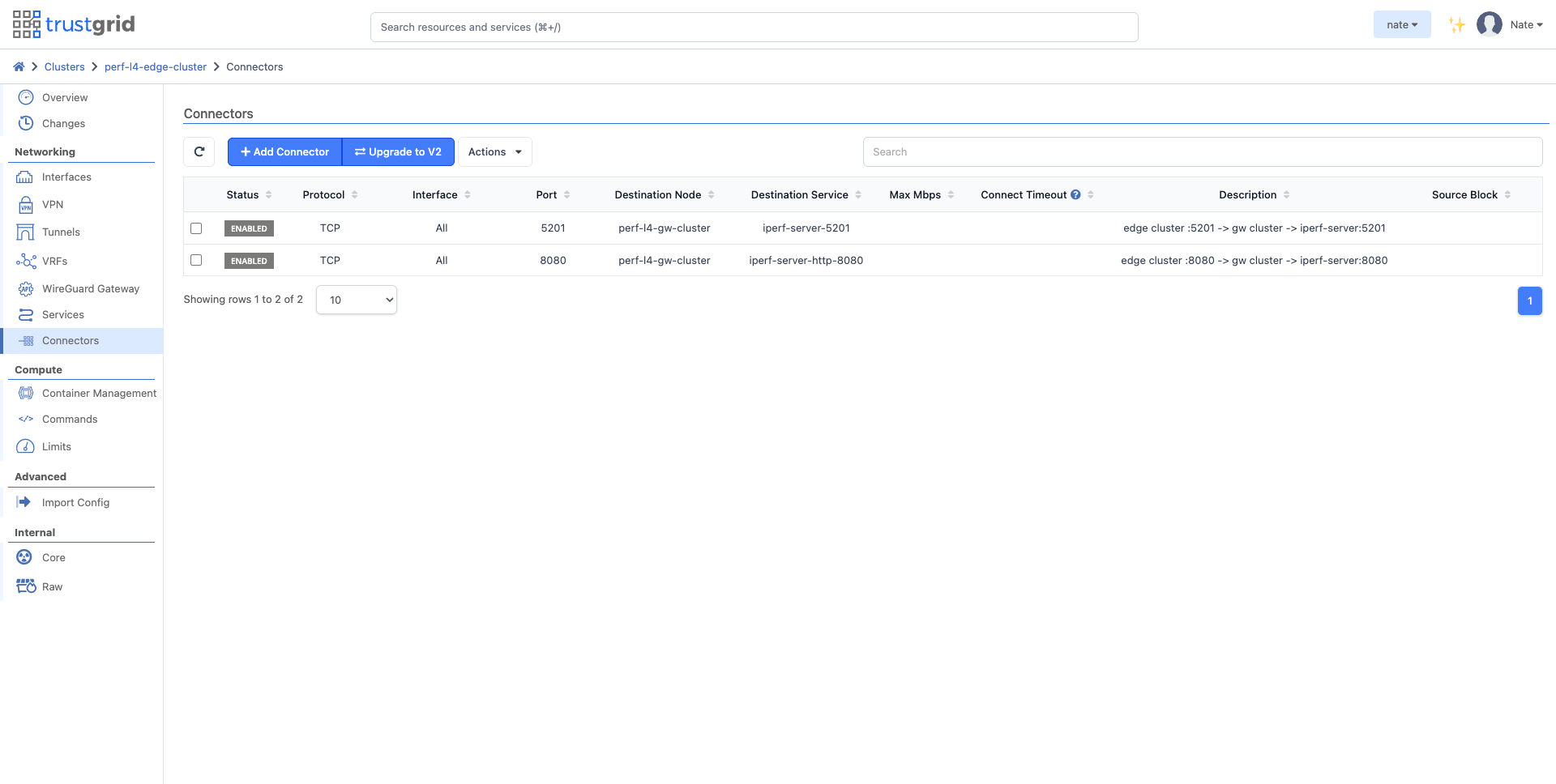
The configured connector appears in the cluster’s Connectors list:
Services — Stable Source IP Toward Backends
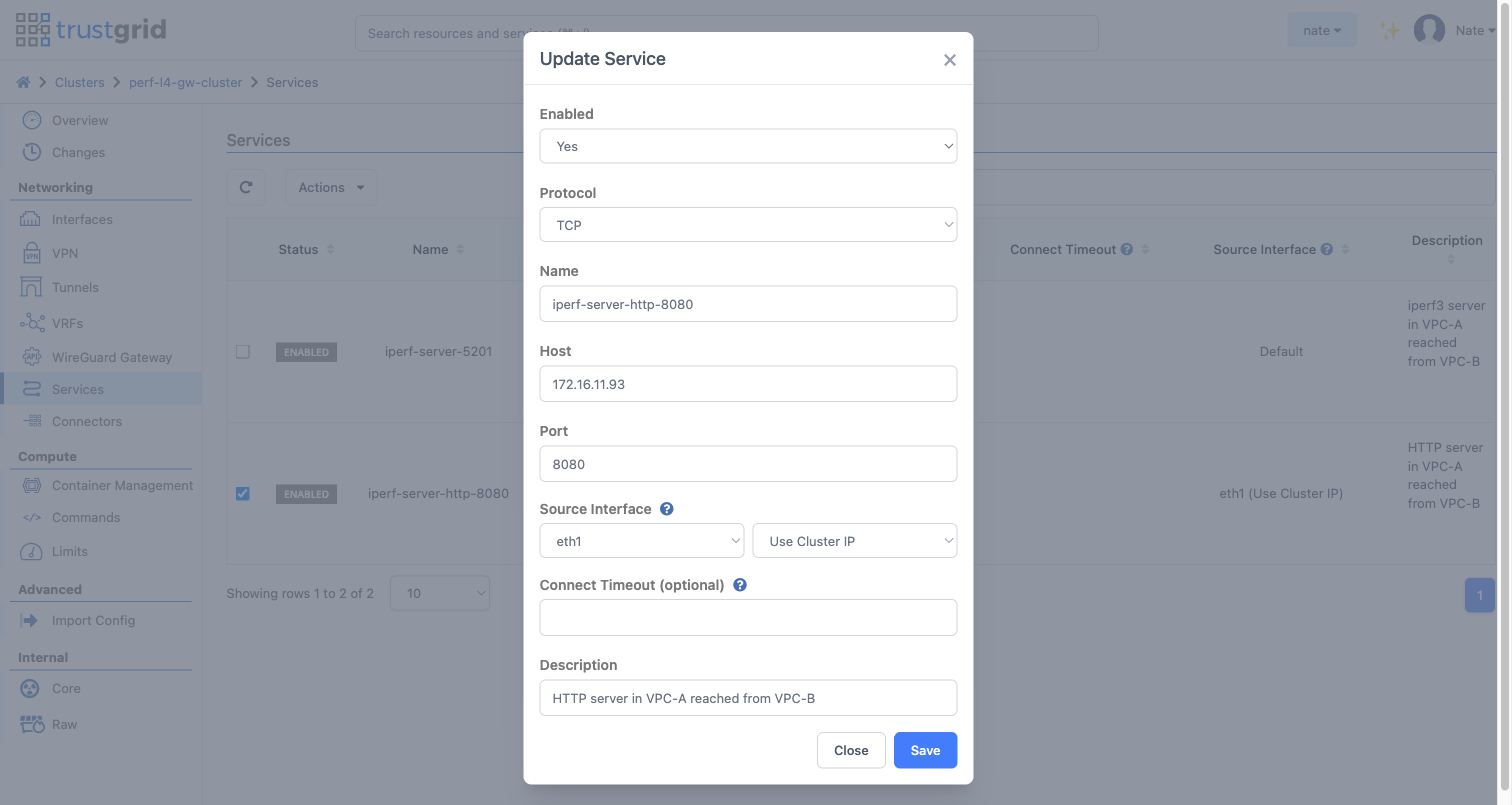
Use this pattern when the cluster originates connections to backends and the backend must see a single stable source IP (allowlists, return routing, audit logging). With Source Interface set to the LAN interface and Use Cluster IP selected, outbound connections are sourced from the cluster IP regardless of which member is currently active.
- In the Trustgrid portal, navigate to your cluster and select Services from the Networking menu.
- Click Add Service and configure:
- Source Interface — set the interface dropdown to the LAN interface (typically
eth1), then set the second dropdown to Use Cluster IP. - Host, Port, Protocol — set per the backend being reached.
- Source Interface — set the interface dropdown to the LAN interface (typically
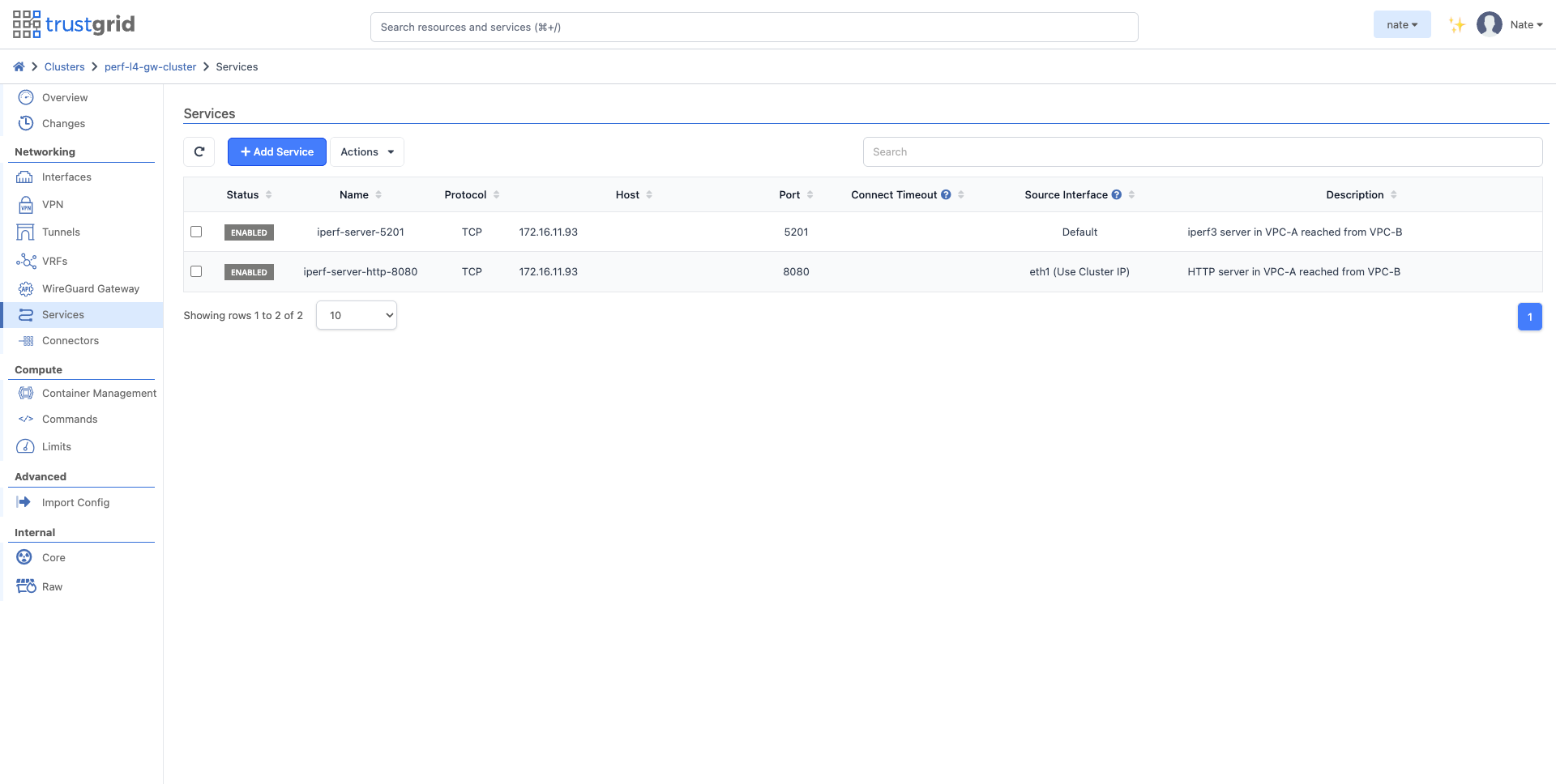
The configured service appears in the cluster’s Services list with the Source Interface column showing eth1 (Use Cluster IP):
Feedback
Was this page helpful?
Glad to hear it! Please tell us how we can improve.
Sorry to hear that. Please tell us how we can improve.